Enable Remote Access
Sym3 Operator >= V10 is supporting only secured connections:
- https instead of http.
- wss instead of ws.
Hence, the configuration of Sym3 requires more configuration.
By default, Sym3 web is accessible only locally, meaning https://localhost:4031/Sym3Web will be accessible from the server only. During the installation, a local certificate has been generated here C:\ProgramData\Sym3\cert and allows only localhost
To enable remote access (a web browser from outside the server), an SSL certificate with the specified IP address or hostname is required.
Apply a SSL certificate
Note: this section should be don only once after installtion. No need to do this after upgrading Sym3.
Step1: Generate a new certificate
-
On the server, Open the web application settings
-
Open the CERTS tab
-
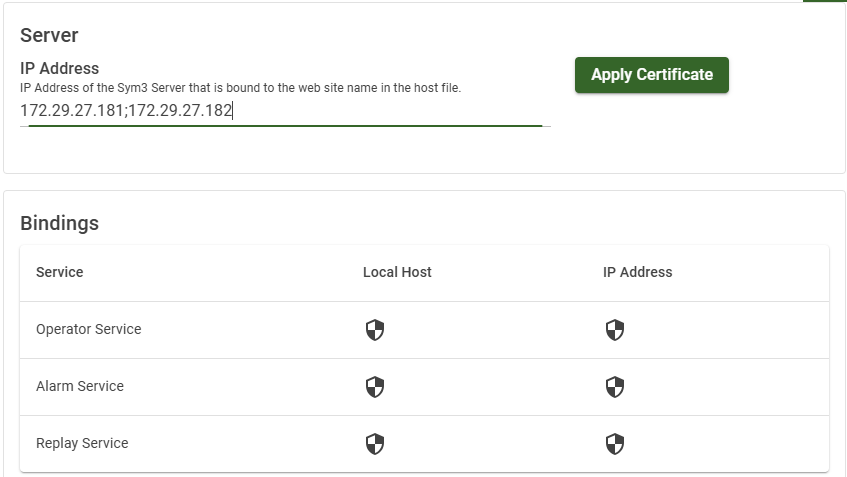
Enter the server’s IP address:
- If the
IP Addressfield is empty, the current certificate only allows access fromlocalhost( or the loopback IP127.0.0.1). - Enter the server’s IP address in the field. Multiple IP addresses can be accepted, delimited by semicolons.
- Click the Apply Certificate button. Sym3 Web will then generate a new certificate that includes the specified IP address or hostname. This step may take some time. After the new certificate is installed, the browser will disconnect from the server.
- If the
Step2: Restart services
- Open the Services (Window Key + “Services”)
- Restart Sym3 Auth Server
- Restart Sym3 Web Service
- Close your web browser
- Open your web browser, and open the web application. For example: https://127.1.2.3/Sym3Web