Use an existing SSL certificate from certificate store
Note: The owner of the certificate is responsible for maintaining the certificate.
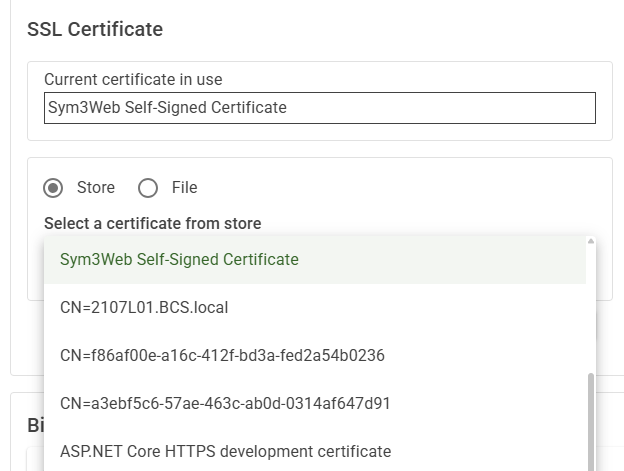
Sym3 Operator allows the use of an existing SSL certificate from the local machine personal store (Cert:\LocalMachine\My). The steps are as follows:
-
Select a certificate from the dropdown.
- The dropdown lists certificates from the local machine personal store (
Cert:\LocalMachine\My) only. Import the certificate into the store if it is not listed.
- The dropdown lists certificates from the local machine personal store (
-
Click the Save button to apply the change.
- This step may take some time. After the new certificate is applied, your browser will be disconnected from the server.
- This step may take some time. After the new certificate is applied, your browser will be disconnected from the server.
-
If the applied certificate is a self-signed certificate, each client computer must install the certificate on the machine. The steps see
Sym3 Web Certificate.
Note: The certificate will be applied to Sym3 Auth Service as well to simplify the configuration. Modifying the Sym3 Auth Service settings manually if a different certificate for Sym3 Auth is required.
Restart the Sym3 Web and Sym3 Auth services after the certificate is applied.
Use a certificate from a .pfx file with a password
Note: Manually import the .pfx file into the certificate store so it can be used to bind the WebSocket ports.
-
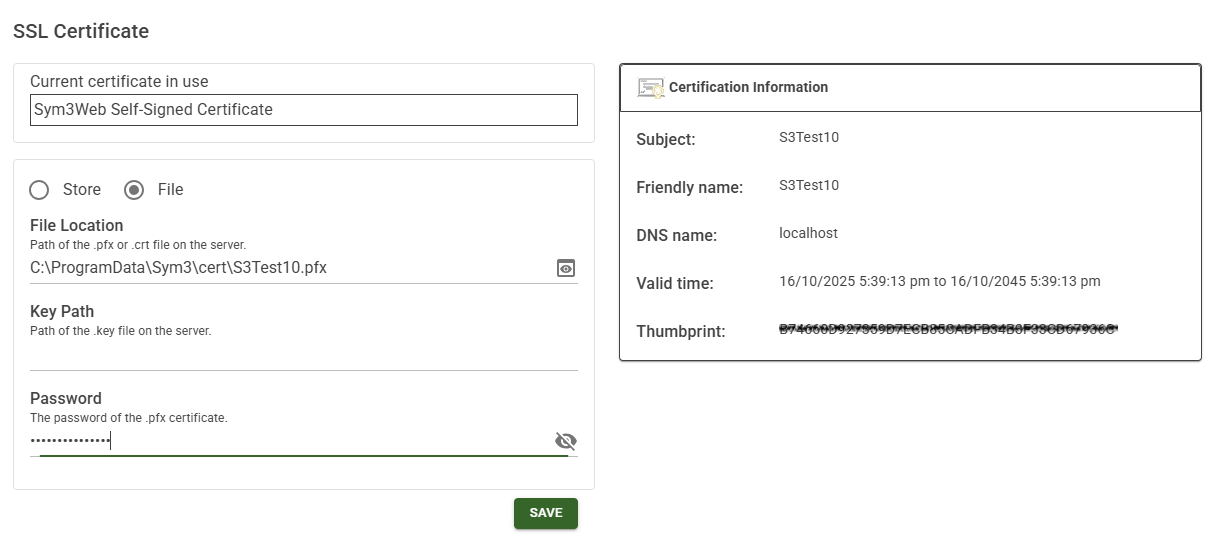
Enter the certificate file path in the
File locationfield. -
Enter the password in the
Passwordfield. -
Click the Preview button next to the File location field to check the certificate information.
-
Click the Save button to apply the certificate.
-
If the applied certificate is a self-signed certificate, each client computer must install the certificate on the machine. The steps see
Sym3 Web Certificate.
Restart the Sym3 Web and Sym3 Auth services after the certificate is applied.
Use a certificate from a .crt file and its corresponding .key file.
Note: Manually import the .crt file into the certificate store so it can be used to bind the WebSocket ports.
-
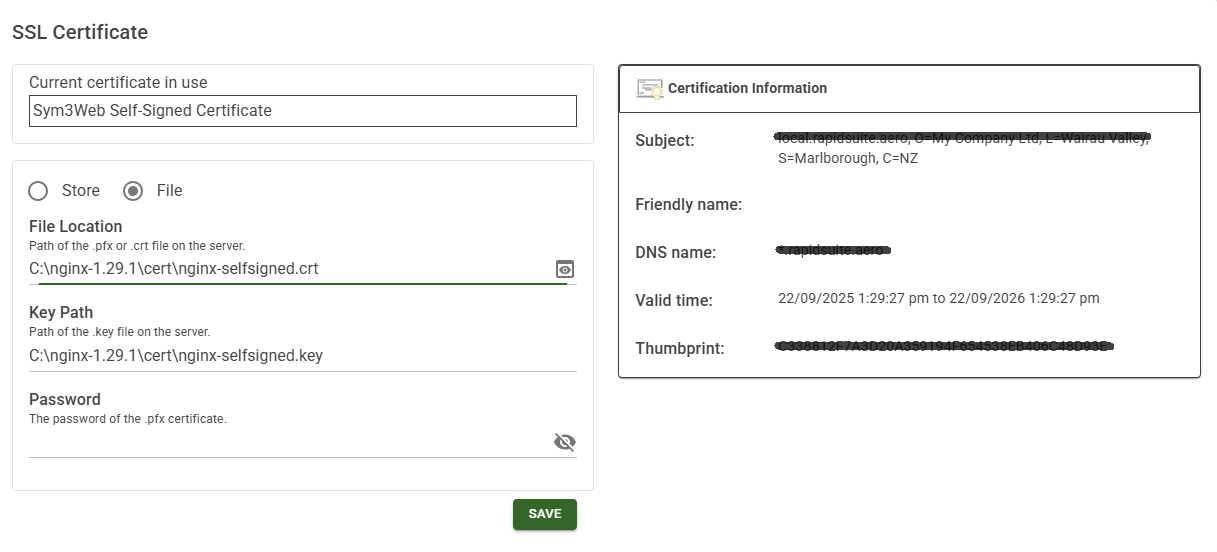
Enter the certificate file path in the
File locationfield. -
Enter the key file path in the
Key Pathfield. -
Click the Preview button next to the File location field to check the certificate information.
-
Click the Save button to apply the certificate.
-
If the applied certificate is a self-signed certificate, each client computer must install the certificate on the machine. The steps see
Sym3 Web Certificate.
Restart the Sym3 Web and Sym3 Auth services after the certificate is applied.
Steps to restart the services
- Open Windows Services (Window Key + “Services”).
- Restart the following services:
- Sym3 Auth Server
- Sym3 Web Service - Close your web browser.
- Open your web browser, and open the web application with the DNS name.