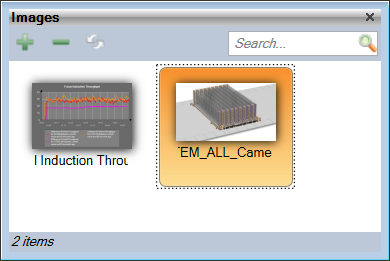
Images
Any Images needed in the Project can be loaded into the Images Panel so they can be saved with the Project and used throughout. Supported image types are:
- BMP
- JPG
- GIF
- PNG
Create a new Image entry (+)
An image can be loaded in Sym3 using the Images Manager that can be accessed with Ribbon > Home > Images.
Clicking on + opens a browse window ‘Open image’ allowing an image to be opened. When loaded, a thumbnail of the image appears in the Panel.
Editing Image Properties
Click on the Property Editor option in the Ribbon bar to open the Property Editor Panel.
From the Project Explorer panel, select Images and the settings for the selected Image will appear in the Property Editor Window:
- Name: Defaults to the filename of the loaded image but can be changed. A unique name is required for the Image in this Panel.
- Width: Read-only. Shows the width of the selected image.
- Height: Read-only. Shows the height of the selected image.
Delete an Image (-)
- Open the Images Manager, select the entry to be deleted and click on -.
- A confirmation screen will appear, ensure this is the correct Image and click Yes to delete it.
Replace selected Image
- Open the Images Manager, select the entry to be replaced and click on the Replace icon.
- The Open image browse window will appear. Browse to the correct Image and click Open to load it.
Search
The Search field provides a filter such that only Image names matching the filter are displayed in the list. To see all Images, ensure this field is empty.